How to Build a Custom Video Player in React
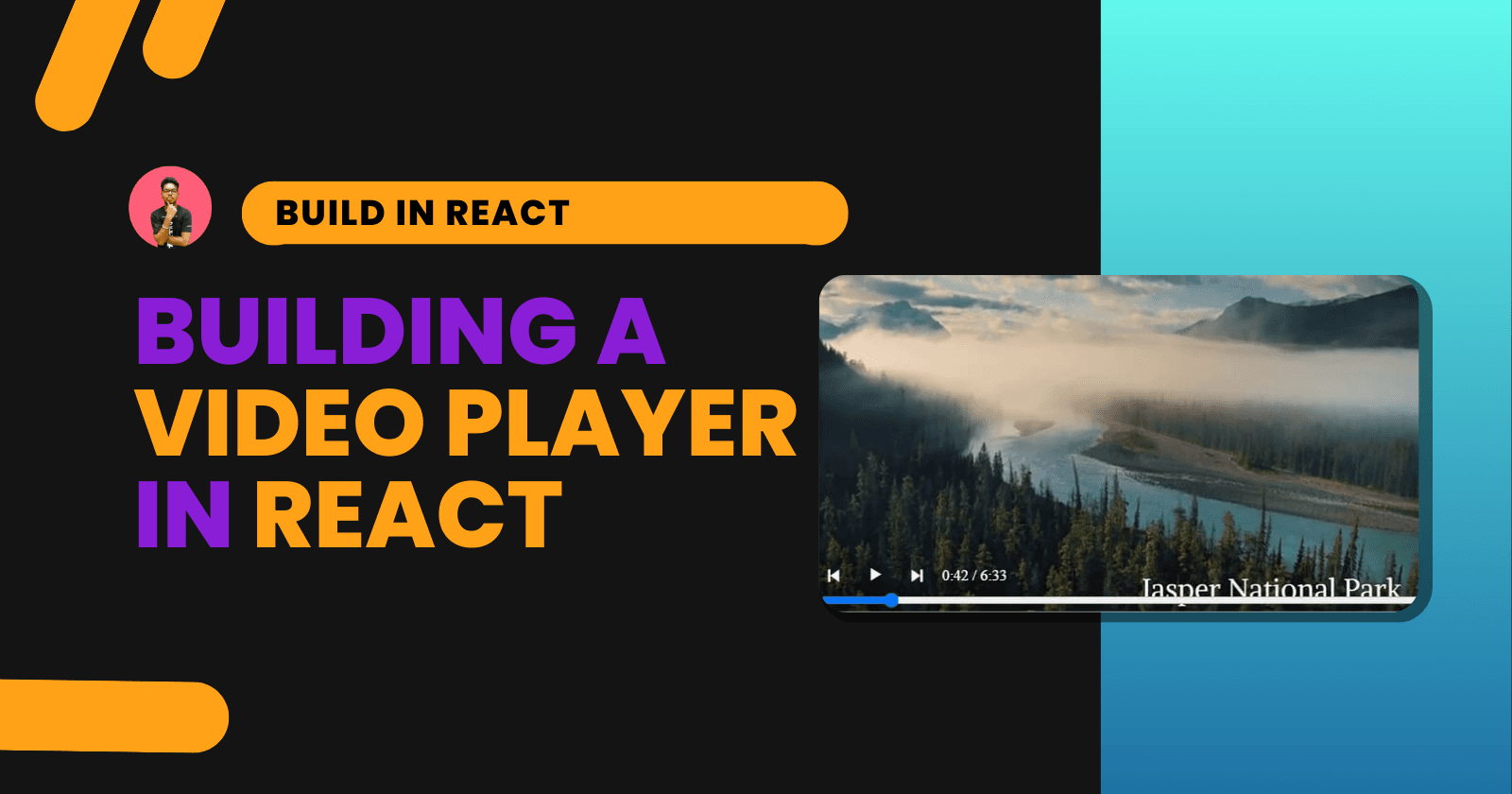
How to Build a Custom Video Player in React

Suraj Vishwakarma
Updated
Originally Published
Navigation Map
Introduction
React has consistently remained the most popular JavaScript library for building modern frontends. If you're a web developer, I highly recommend learning React. And there's no better way to learn than by building real-world projects.
In one of my previous articles, I covered Building a Music Player in React. This time, let’s build something just as cool—a custom video player using React.
By the end of this tutorial, you’ll have a fully functional custom video player with:
- Play and Pause controls
- Display of current time and total duration
- A timeline for scrubbing through the video
Here’s a preview of what we’ll build:

Let’s dive in!
Prerequisites and Environment Setup
Before we begin, make sure you're familiar with the following:
- JavaScript
- HTML/CSS
- Basic React
You’ll also need Node.js installed on your system.
Navigate to the folder where you want to create the project and run the following command:
npx create-react-app video-playerOnce the app is created, clean up the boilerplate code to start fresh.
Dependencies
We'll use just one library:
react-icons: For adding play, pause, next, and previous icons.
Install it using:
npm install react-iconsPlaying a Video with the Default Player
Let’s first add a video to the project and play it using the native HTML5 <video> tag. In your App.js:
import video from "./assets/video.mp4";

return (
  <video controls width="70%" className="videoPlayer" src={video}></video>
);
This gives us a basic player with default browser controls.
Building a Custom Video Player with Play/Pause Controls
Let’s build custom controls by removing the controls attribute from the <video> tag.
Here’s how the video component should look:
<video
  className="videoPlayer"
  width="70%"
  ref={videoRef}
  src={video}
></video>
Now let’s add icons using react-icons:
<div className="controls">
  <IconContext.Provider value={{ color: "white", size: "2em" }}>
    <BiSkipPrevious />
  </IconContext.Provider>
  {isPlaying ? (
    <button className="controlButton" onClick={handlePlay}>
      <IconContext.Provider value={{ color: "white", size: "2em" }}>
        <BiPause />
      </IconContext.Provider>
    </button>
  ) : (
    <button className="controlButton" onClick={handlePlay}>
      <IconContext.Provider value={{ color: "white", size: "2em" }}>
        <BiPlay />
      </IconContext.Provider>
    </button>
  )}
  <IconContext.Provider value={{ color: "white", size: "2em" }}>
    <BiSkipNext />
  </IconContext.Provider>
</div>
Here’s the state and refs setup:
import { useEffect, useRef, useState } from "react";
import { IconContext } from "react-icons";
import { BiPlay, BiPause, BiSkipNext, BiSkipPrevious } from "react-icons/bi";

function App() {
  const videoRef = useRef(null);
  const [isPlaying, setIsPlaying] = useState(false);
}
Now define the play/pause function:
const handlePlay = () => {
  if (isPlaying) {
    videoRef.current.pause();
    setIsPlaying(false);
  } else {
    videoRef.current.play();
    setIsPlaying(true);
  }
};
Styling the Player
Here’s some CSS to make things look good:
.container {
  display: flex;
  margin: 0 auto;
  justify-content: center;
  width: 80%;
}

.playerContainer {
  display: flex;
  flex-direction: column;
  margin-top: 5em;
  border-radius: 1em;
  overflow: hidden;
}

.videoPlayer {
  border-radius: 1em;
  z-index: -1;
}

.controlsContainer {
  margin-top: -3.5em;
}

.controls {
  display: flex;
  z-index: 1;
  color: white;
  width: 200px;
  justify-content: space-between;
}

.controlButton {
  border: none;
  background: none;
}

.timeline {
  width: 70%;
}

.duration {
  display: flex;
  justify-content: center;
  align-items: center;
}

.controlButton:hover {
  cursor: pointer;
}
Displaying Current Time and Duration
Add the following states:
const [currentTime, setCurrentTime] = useState([0, 0]);
const [currentTimeSec, setCurrentTimeSec] = useState();
const [duration, setDuration] = useState([0, 0]);
const [durationSec, setDurationSec] = useState();
Now use useEffect to track time:
useEffect(() => {
  const { min, sec } = sec2Min(videoRef.current.duration);
  setDurationSec(videoRef.current.duration);
  setDuration([min, sec]);

  const interval = setInterval(() => {
    const { min, sec } = sec2Min(videoRef.current.currentTime);
    setCurrentTimeSec(videoRef.current.currentTime);
    setCurrentTime([min, sec]);
  }, 1000);

  return () => clearInterval(interval);
}, [isPlaying]);
Helper function to convert seconds to minutes:
const sec2Min = (sec) => {
  const min = Math.floor(sec / 60);
  const secRemain = Math.floor(sec % 60);
  return { min, sec: secRemain };
};
Display time in the UI:
<div className="duration">
  {currentTime[0]}:{currentTime[1]} / {duration[0]}:{duration[1]}
</div>
Adding a Timeline Range Slider
<input
  type="range"
  min="0"
  max={durationSec}
  defaultValue="0"
  value={currentTimeSec}
  className="timeline"
  onChange={(e) => {
    videoRef.current.currentTime = e.target.value;
  }}
/>
Live Demo
Try out the full working example in this CodeSandbox:
{% codesandbox immutable-sun-1bptx8 %}
Bonus: More Features to Add
You can extend the player with additional features like:
- Making it responsive for all screen sizes
- Adding a fullscreen toggle
- Displaying controls only on hover
- Volume control and mute toggle
- Playback speed control
Conclusion
We’ve built a custom video player in React with features like play/pause, duration tracking, and a custom timeline. This is a great project to level up your React skills and understand DOM video handling.
Thanks for reading, and happy coding! 🚀